
Notice
Recent Posts
Recent Comments
Link
250x250
| 일 | 월 | 화 | 수 | 목 | 금 | 토 |
|---|---|---|---|---|---|---|
| 1 | 2 | 3 | 4 | 5 | 6 | 7 |
| 8 | 9 | 10 | 11 | 12 | 13 | 14 |
| 15 | 16 | 17 | 18 | 19 | 20 | 21 |
| 22 | 23 | 24 | 25 | 26 | 27 | 28 |
Tags
- 데이터 구축
- Bart
- matplotlib
- RNN
- ODQA
- dataset
- AI Math
- GPT
- Optimization
- N2N
- passage retrieval
- Ai
- nlp
- 기아
- Data Viz
- 데이터 시각화
- N21
- KLUE
- 2023 현대차·기아 CTO AI 경진대회
- Self-attention
- seaborn
- 현대자동차
- word2vec
- 딥러닝
- Bert
- pyTorch
- mrc
- Transformer
- Attention
- AI 경진대회
Archives
- Today
- Total
쉬엄쉬엄블로그
(Data Viz) Python과 Matplotlib 본문
728x90
이 색깔은 주석이라 무시하셔도 됩니다.
1-3. Python과 Matplotlib
1. 왜 Matplotlib일까?
Matplotlib은 Python에서 사용할 수 있는 시각화 라이브러리.- 현재 사용되고 있는 다양한 데이터 분석 및 머신러닝/딥러닝은 Python에서 이뤄지고 있다.
numpy와scipy를 베이스로 하여 다양한 라이브러리와 호환성이 좋다.Scikit-Learn,PyTorch,TensorflowPandas
- 다양한 시각화 방법론을 제공한다.
- 막대그래프
- 선그래프
- 산점도
- ETC
- 그 외에도
Seaborn,Plotly,Bokeh,Altair등의 시각화 라이브러리가 존재- Matplotlib가 범용성이 제일 넓고, base가 되는 라이브러리
1-1. Import Library
# 만약 버전이 다르다면 pip install matplotlib 또는 conda install matplotlib으로 라이브러리를 다운
!pip install matplotlib==3.3.0

import numpy as np
# matplotlib은 줄여서 mpl로 코드 상에서 사용
import matplotlib as mpl

print(f'numpy version : {np.__version__}') # version check
print(f'matplotlib version : {mpl.__version__}') # version check

# 그리고 가장 많이 사용하는 pyplot 모듈도 함께 불러옴 (이전에는 pylab이 있었지만 현재는 지원안함)
import matplotlib.pyplot as plt
2. 기본 Plot
2-1. Figure와 Axes
- matplotlib에서 그리는 시각화는 Figure라는 큰 틀에 Ax라는 서브플롯을 추가해서 만든다.
다만 Figure는 큰 틀이라 서브플롯을 최소 1개 이상 추가해야 하고, 추가하는 다양한 방법이 있다.
fig = plt.figure()
ax = fig.add_subplot()
plt.show()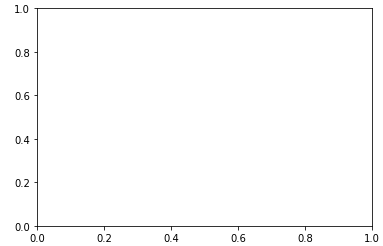
- 그래프의 사이즈는 figure의 사이즈로 서브플롯 ax의 사이즈를 조정한다.
가로, 세로 길이(inch 단위)를 tuple형태로 figsize 파라미터에 전달하여 조정한다.
노트북 환경에서는 비율로 생각하고 진행하면 편리하다.
fig = plt.figure(figsize=(12, 7))
ax = fig.add_subplot()
plt.show()
- 2개 이상 그리고 싶다면 위치를 지정해줘야 한다.
fig = plt.figure()
ax = fig.add_subplot(121)
# ax = fig.add_subplot(1, 2, 1)로 사용가능
ax = fig.add_subplot(122)
plt.show()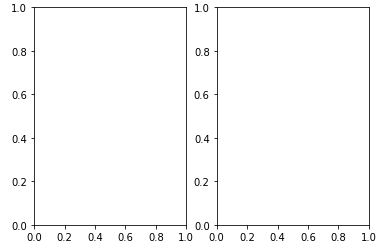
fig = plt.figure()
ax1 = fig.add_subplot(211)
ax2 = fig.add_subplot(212)
# 같은 내용이지만 더 가독성을 높인다면
# 다음과 같이 사용 가능
# ax1 = fig.add_subplot(1, 2, 1)
# ax2 = fig.add_subplot(1, 2, 2)
plt.show()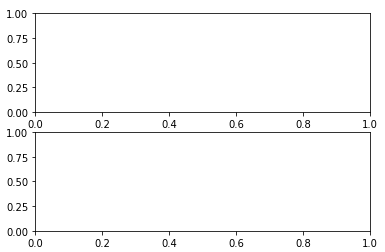
2-2. plt로 그래프 그리기
리스트 [1, 2, 3] 데이터를 ax에 그리기
plt로 그리는 그래프들은 순차적으로 그리기에 좋음
- 선그래프를 그리는
plot
fig = plt.figure()
ax = fig.add_subplot()

x = [1, 2, 3]

plt.plot(x)
plt.show()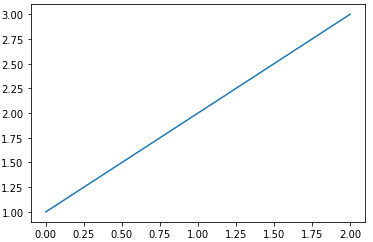
- 2개를 순서대로 그리기
fig = plt.figure()

x1 = [1, 2, 3]
x2 = [3, 2, 1]

ax1 = fig.add_subplot(211)
plt.plot(x1) # ax1에 그리기
ax2 = fig.add_subplot(212)
plt.plot(x2) # ax2에 그리기
plt.show()
2-3. 서브플롯 객체 ax에 그리기
ax 객체에 직접 그리면 된다. (Matplotlib은 그릴 때 두 가지 API를 따로 지원함)
- Pyplot API : 순차적 방법
- 객체지향(Object-Oriented) API : 그래프에서 각 객체에 대해 직접적으로 수정하는 방법
fig = plt.figure()

x1 = [1, 2, 3]
x2 = [3, 2, 1]

ax1 = fig.add_subplot(211)
ax2 = fig.add_subplot(212)

ax1.plot(x1)
ax2.plot(x2)
plt.show()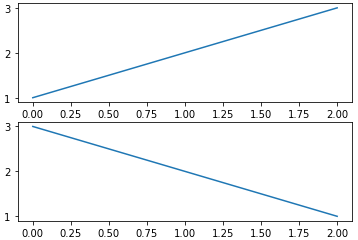
- plt로 그리다 plt.gcf().get_axes()로 다시 서브플롯 객체를 받아서 사용할 수도 있음
3. Plot의 요소들 알아보기
3-1. 한 서브플롯에서 여러 개 그리기
- ax에는 동시에 다양한 그래프를 그릴 수 있다.
- 동시에 그래프를 그리게 되면 색상이 자동적으로 구분됨
fig = plt.figure()
ax = fig.add_subplot(111)
# 3개의 그래프 동시에 그리기
ax.plot([1, 1, 1]) # 파랑
ax.plot([1, 2, 3]) # 주황
ax.plot([3, 3, 3]) # 초록
ax.plot([2, 2, 2])

plt.show()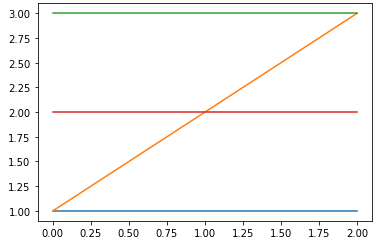
- 다른 종류의 그래프가 추가된다면 다시 파란색으로 시작하기에 색을 명시해 주는 게 좋다.
fig = plt.figure()
ax = fig.add_subplot(111)

# 선그래프와 막대그래프 동시에 그리기
ax.plot([1, 2, 3], [1, 2, 3])
ax.bar([1, 2, 3], [1, 2, 3])

plt.show()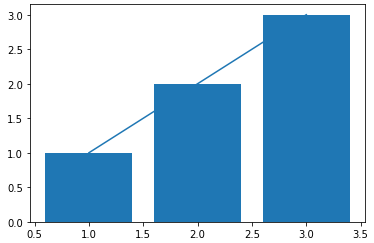
3-2. 색상 지정하기
- 색을 직접 명시할 수 있고, 일반적으로
color파라미터를 통해 전달한다.
색에 대한 다양한 조합은 직접 하면 제일 좋겠지만 rgb hex값을 검색하는 방법을 추천
fig = plt.figure()
ax = fig.add_subplot(111)
# 3개의 그래프 동시에 그리기
ax.plot([1, 1, 1], color='r') # 한 글자로 정하는 색상
ax.plot([2, 2, 2], color='forestgreen') # color name
ax.plot([3, 3, 3], color='#000000') # hex code (BLACK)
plt.show()
3-3. 텍스트 사용하기
- 정보를 추가하기 위해 텍스트를 사용할 수도 있다.
fig = plt.figure()
ax = fig.add_subplot(111)
ax.plot([1, 1, 1], label='1')
ax.plot([2, 2, 2], label='2')
ax.plot([3, 3, 3], label='3')
ax.set_title('Basic Plot')
# label과 title을 추가하고 `legend`를 추가해줘야 그래프 가운데 위와 오른쪽 위에 텍스트 정보가 추가됨
ax.legend()
plt.show()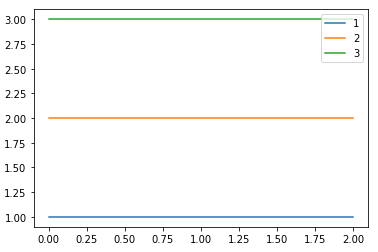
fig = plt.figure()
ax1 = fig.add_subplot(1, 2, 1)
ax2 = fig.add_subplot(1, 2, 2)

ax1.set_title('ax1')
ax2.set_title('ax2')
fig.suptitle('fig') # sup : super

plt.show()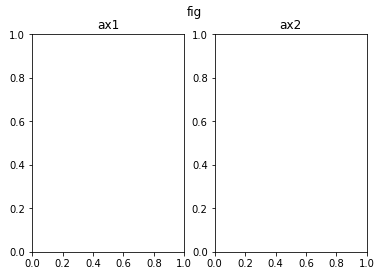
- ax에서 특정 데이터를 변경하는 경우
.set\_{}()형태의 메서드가 많다. set으로 세팅하는 정보들은 반대로 해당 정보를 받아오는 경우에는.get\_{}()형태의 메서드를 사용한다.
fig = plt.figure()
ax = fig.add_subplot(111)
ax.plot([1, 1, 1], label='1')
ax.plot([2, 2, 2], label='2')
ax.plot([3, 3, 3], label='3')
ax.set_title('Basic Plot')
ax.legend()

print(ax.get_title())
plt.show()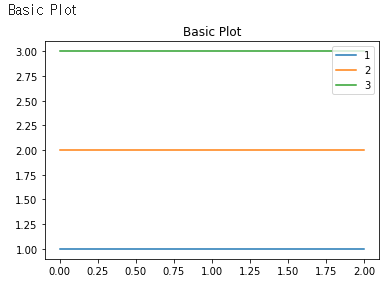
- 축은
ticks와ticklabels로 구분된다. ticks은 축에 적히는 수 위치를 지정한다.
fig = plt.figure()
ax = fig.add_subplot(111)
ax.plot([1, 1, 1], label='1')
ax.plot([2, 2, 2], label='2')
ax.plot([3, 3, 3], label='3')


ax.set_title('Basic Plot')
ax.set_xticks([0, 1, 2])


ax.legend()

plt.show()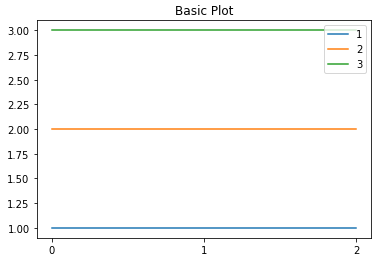
thicklabels은 축에 적히는 텍스트를 수정한다.
fig = plt.figure()
ax = fig.add_subplot(111)
ax.plot([1, 1, 1], label='1')
ax.plot([2, 2, 2], label='2')
ax.plot([3, 3, 3], label='3')


ax.set_title('Basic Plot')
ax.set_xticks([0, 1, 2])
ax.set_xticklabels(['zero', 'one', 'two'])
ax.legend()

plt.show()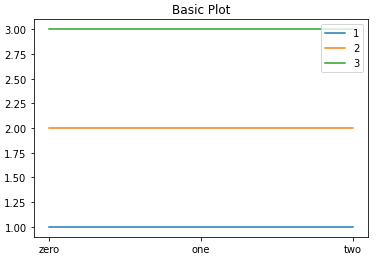
- 일반적인 텍스트를 추가하는 방법 2가지
fig = plt.figure()
ax = fig.add_subplot(111)
ax.plot([1, 1, 1], label='1')
ax.plot([2, 2, 2], label='2')
ax.plot([3, 3, 3], label='3')


ax.set_title('Basic Plot')
ax.set_xticks([0, 1, 2])
ax.set_xticklabels(['zero', 'one', 'two'])

ax.text(x=1, y=2, s='This is Text')

ax.legend()

plt.show()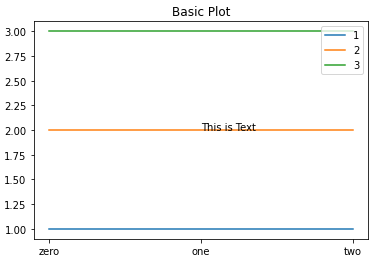
fig = plt.figure()
ax = fig.add_subplot(111)
ax.plot([1, 1, 1], label='1')
ax.plot([2, 2, 2], label='2')
ax.plot([3, 3, 3], label='3')


ax.set_title('Basic Plot')
ax.set_xticks([0, 1, 2])
ax.set_xticklabels(['zero', 'one', 'two'])

ax.annotate(text='This is Annotate', xy=(1, 2))

ax.legend()

plt.show()
- annotate는 화살표 등을 추가할 수 있다는 장점이 있다.
fig = plt.figure()
ax = fig.add_subplot(111)
ax.plot([1, 1, 1], label='1')
ax.plot([2, 2, 2], label='2')
ax.plot([3, 3, 3], label='3')


ax.set_title('Basic Plot')
ax.set_xticks([0, 1, 2])
ax.set_xticklabels(['zero', 'one', 'two'])

ax.annotate(text='This is Annotate', xy=(1, 2),
           xytext=(1.2, 2.2),
            arrowprops=dict(facecolor='black'),
           )

ax.legend()

plt.show()
출처: 부스트캠프 AI Tech 4기(NAVER Connect Foundation)
'부스트캠프 AI Tech 4기' 카테고리의 다른 글
| (Data Viz) Bar Plot 실습 (4) | 2023.06.09 |
|---|---|
| (Data Viz) Bar Plot (1) | 2023.06.08 |
| (Data Viz) 시각화의 요소 상태 (2) | 2023.06.06 |
| (딥러닝) Generative Models - 2 (0) | 2023.06.05 |
| (딥러닝) Generative Models - 1 (0) | 2023.06.03 |
'부스트캠프 AI Tech 4기' Related Articles
more


Comments